
3 Gemini / NotebookLM tips
Chrome introduces Gemini, while NotebookLM can be used for SaaS to create structured data tables and interactive dashboards


Here are a trio of cool Gemini / NoteBookLM use cases I came across last week:
Software as a Service (SaaS)
This video outlines how to transform proprietary knowledge into a sellable service (SaaS-like experience) using NotebookLM and Google Gemini Gems without writing code (0:00).
The video focuses on two primary delivery methods:
- sharing proprietary "chat-only" links to keep sources hidden (0:45), or
- building custom Gemini Gems directly within a client's site for a fully integrated experience (1:30).
Key steps include using screenshots of the Gem interface to generate precise prompt engineering instructions via Gemini (2:15) and attaching specific NotebookLM sources to the Gem to provide accurate, context-aware responses (5:20).
The tutorial also covers licensing considerations when using copyrighted materials (8:30) and provides a final workflow for delivering the service to clients (12:00)
Structured data tables and interactive dashboards
This video details a research workflow using Google NotebookLM and Gemini to quickly analyze unstructured data and create interactive dashboards. The process turns websites and documents into structured information without manual spreadsheets.The workflow follows these key steps:
- Source Collection (0:42): Use Google AI Mode to gather relevant website URLs for research.
- Data Extraction (1:30): Import sources into NotebookLM and use the Data Tables feature to transform messy web pages into structured tables (2:06).
- Data Visualization (2:45): Export data to Google Sheets for filtering, or use NotebookLM's Infographic tool for a visual overview of the data (3:06).
- Interactive Dashboard (3:29): Import the data into Gemini and use Canvas Mode to build an interactive dashboard that allows for filtering products by features and viewing detailed comparison panels (4:10).
Gemini tab in Chrome
A new feature that appeared in Chrome is the ability to have a Gemini side panel. Simply click on the Gemini logo on the top right of your Chrome browser.
What makes this fantastic is that you can actually ask questions on whatever tab is open. If you have multiple tabs open, each can have its own Gemini side panel.
In the screenshot below, I show how easy it is to search, to locate a video among the scores that I have watched in the past week.
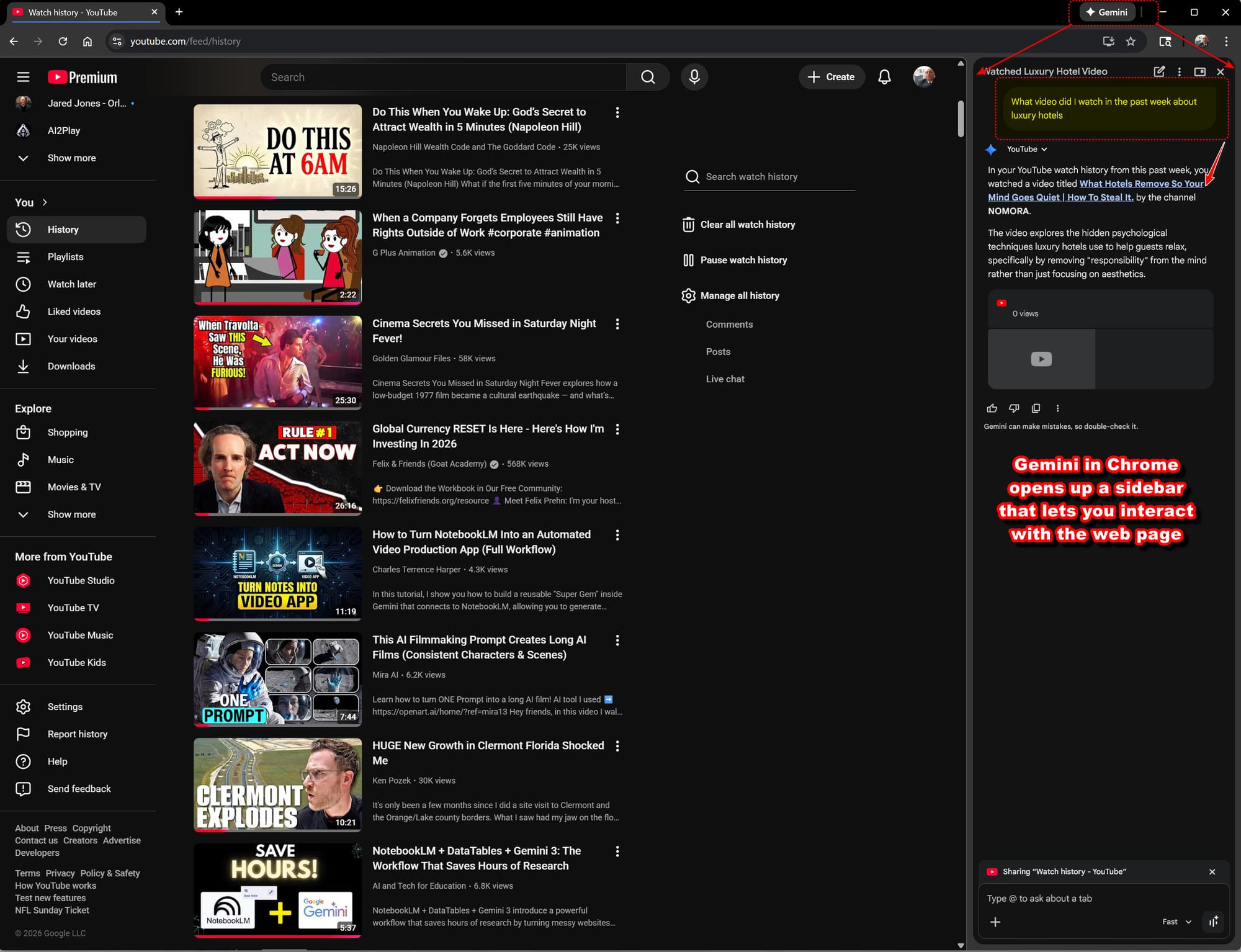
For example, I wanted to locate a video about how the environment in hotels makes you calm and think better. https://youtu.be/sOdUz04ndWI?si=U2fqalhcfMMFbc6E
The Do this at 6AM video I watched mentioned waves affect the brain. I was able to query my YouTube watch history to understand that I had watched several videos about theta waves.
It's possible to ask Gemini questions like, "What commonalities tie a group of videos I've watched together?" This makes it easy to find articles for my blog posts. The possibilities this opens are so exciting!