
Caffeine and Daydreams - quick music video
My third music video was created within about 45 minutes with heavy help from Open Art Music Video Option.

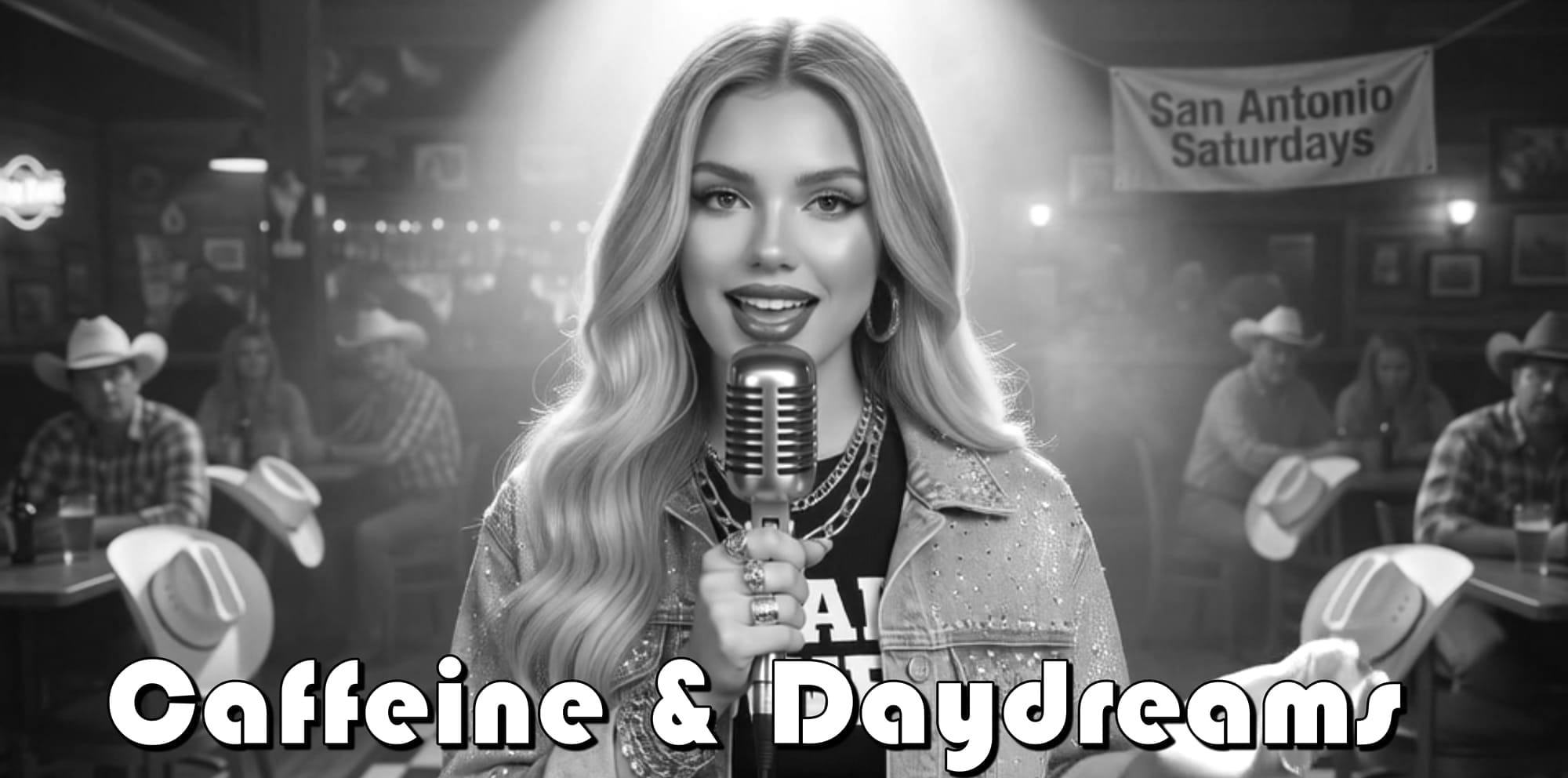
If you have a song in your heart—literally—you don't need a Hollywood budget to share it.
The favorite AI song I've done over the past year is "Caffeine and Daydreams," an 80's country music-inspired song inspired by the Judds.
An AI music video I created this morning
Here is how you can turn a song into a visual experience. Follow this simple, step-by-step guide to creating your first AI-assisted music video.
Step 1: Choose Your Creative Path
Head over to the Openart platform and select the "music video" option.
https://openart.ai/music-video
You’ll be presented with four distinct modes, each acting as a different narrative framework for your story:
- Singing Video: Focuses on the performance.
- Narrative Video: Focuses on a plot or journey.
- Visualizer: Focuses on abstract mood and atmosphere.
- Lyrics Video: Focuses on the written word and its meaning.
Step 2: Set the Foundation
Upload your song. This can be an MP3 file, for example from SUNO. You have the power to use the full duration or trim it to a specific section. This is a great way to focus on the "peak" of your story or to be efficient with your creative credits.
Step 3: Find Your Hero
Instead of building a character from scratch, lean into the Social Proof of the community. Choose a pre-made character from the community tab. These are proven designs that help lower the barrier to entry, allowing you to focus on the story rather than the technicalities.
Step 4: Define the "Vibe"
While the AI can often detect your music's theme, adding a story topic or vibe description acts as your Brand Manifesto—it rallies the visual elements around your specific belief.
Example Prompt: "Indie artists performing in cozy vintage spaces. Warm, nostalgic aesthetic, intimate performance vibe."
Step 5: Configure the Technical "Blueprint"
To ensure your video feels professional and cinematic, set your aspect ratio to 16:9. This is the standard for a "wide-screen" experience that feels like a real film.
Step 6: Activate the Storytelling Features
In the advanced options, you want to enable two specific tools that mimic professional editing:
- Include B-roll shots: This adds variety and depth, showing different angles and details.
- Enable match video to beat: This ensures the visuals pulse and change in time with your music, tapping into the natural human rhythm.+1
Step 7: Select Your Engines
For the highest quality results, choose the NanoBanana Pro image model and the Lip Sync video model. You can try the 2K option. These tools work together to ensure that your character doesn't just look good, but actually "speaks" your lyrics with consistency.
Step 8: Create the Story
Click "Create Story." The system will now take your inputs and generate a complete character, create multiple scenes, and deliver a full music video in about 15 minutes.
What’s In It For You?
Saving Time: You get fast results without spending hours on every detail. I was done in about half an hour. Whereas my first music video took me the better part of a whole day at least. I guess you could say "time is money," right?
Caveat Emptor:
This burns through a LOT of credits :( I spent about 8,200 credits each on two separate tries.
or context, a 2K 16 is to 9 aspect ratio NanoBanana Pro image currently costs only 35 credits.
Also, both of my attempts did not automatically result in a complete video generation, but rather it generated a lot of stills and short animated clips, about 5 seconds. I had to piece together with the CapCut desktop Video editor.