
Professional AI videos with free tools
Using a trio of master prompts and the power of NotebookLM, you can create quality videos

Creating high-quality, factual, and engaging video content for YouTube can feel like a daunting task. Hours of scripting, editing, and fact-checking often stand between a great idea and a published video.
But what if you could streamline this entire process, leveraging the power of AI to create professional, broadcast-quality documentaries with zero budget?
This guide based on the Youtube video below teaches a workflow that replaces manual editing with automated processes, ensuring your videos are accurate, high-quality, and optimized for maximum viewer retention.
We'll explore a powerful tech stack, centered around NotebookLM, that will transform your video creation process.
The Brain of the Operation: Scripting with NotebookLM
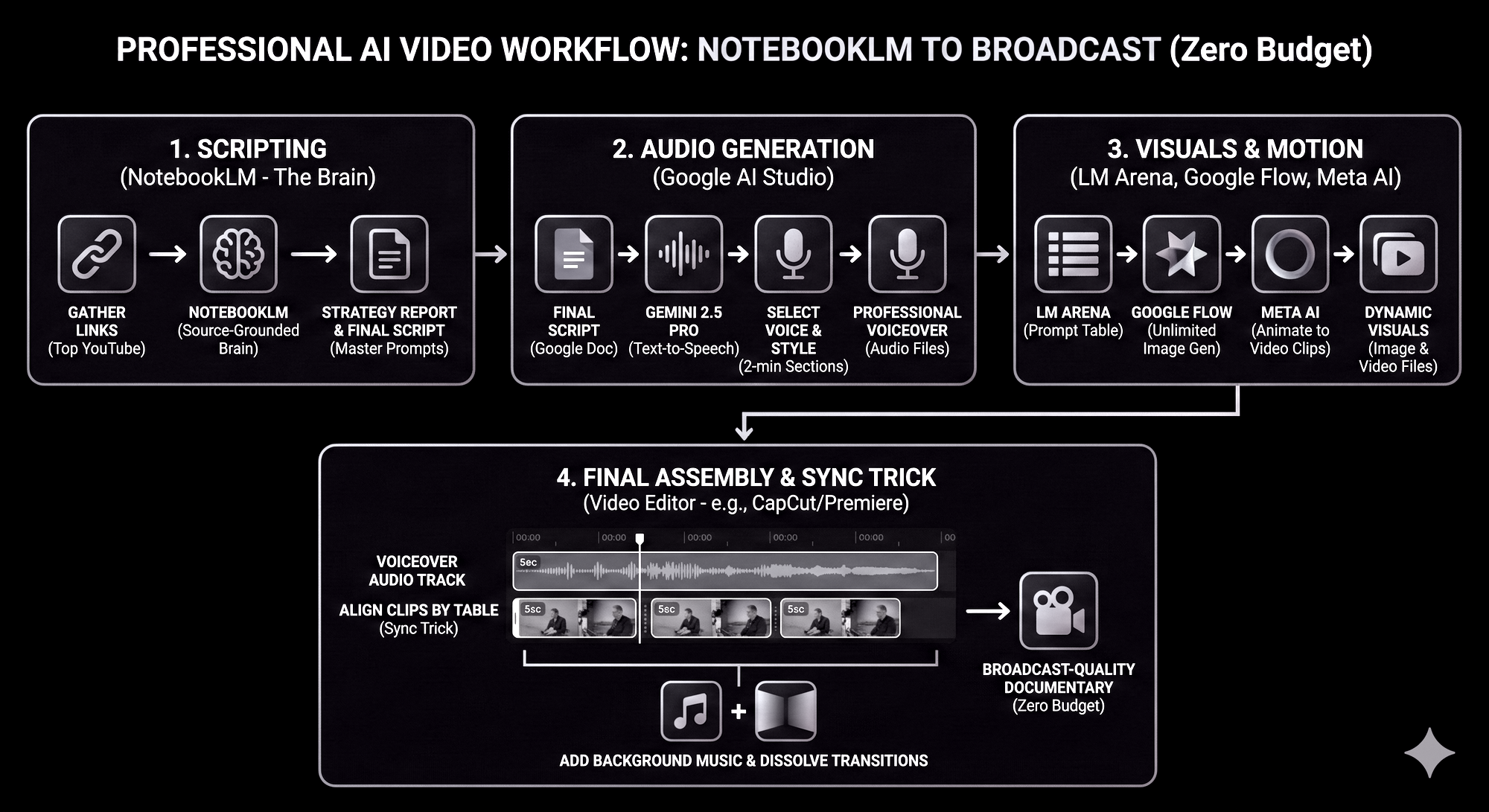
The foundation of any great video is a compelling and accurate script. This is where NotebookLM shines as the "brain of the operation." Its source-grounded nature is paramount, effectively preventing AI hallucinations and guaranteeing the factual accuracy of your content.
1. Fueling the Beast: Begin by gathering at least ten winning YouTube video links related to your niche (e.g., quantum computing and AI) from the current month. These serve as the "sources" you feed into NotebookLM, giving it a rich and current understanding of your topic.
2. The Strategy Report (Master Prompt Number One): Utilize Master Prompt Number One to analyze the transcripts from your gathered sources. This prompt helps NotebookLM identify compelling hooks, potential retention gaps, and overall video structure. The output is a comprehensive strategy report, guiding the outline of your video.
3. From Strategy to Script (Master Prompt Number Two): Convert the strategy report into a source document within NotebookLM. Then, deploy Master Prompt Number Two to generate a script specifically optimized for voice-over and formatted for teleprompters. This prompt also ensures your script incorporates the strongest hook identified in the strategy report, immediately grabbing your viewers' attention.
4. The Google Doc Hand-Off: Once generated, copy your polished script into a Google Doc. This makes it easily accessible for the next stage of our workflow.
Giving Your Script a Voice: Audio Generation with Google AI Studio
Now that you have a meticulously crafted script, it's time to bring it to life with a professional voice-over.
1. The Power of Google AI Studio: Head over to Google AI Studio's playground tab for seamless text-to-speech conversion. This powerful tool offers an "unlimited" capacity for high-quality generations.
2. Gemini 2.5 Pro for Robustness: For optimal results, we recommend using Gemini 2.5 Pro due to its exceptional robustness and versatility.
3. Crafting Your Voice: Select a voice that perfectly suits your video's tone and subject matter. Don't forget to include style instructions (e.g., "Deep, authoritative, fast-paced") to guide the AI's delivery.
4. Section by Section: To maintain the highest AI quality, break your script into approximately two-minute sections for generation. This prevents potential dips in quality that can occur with extremely long, single-pass generations.
Bringing Your Story to Life: Visuals with LM Arena and Google Flow
A professional video demands engaging visuals. This stage focuses on generating high-quality images and preparing them for animation.
1. Unlocking Top Models with LM Arena: LM Arena provides access to top-tier paid models for free, including the impressive Gemini 3 Pro.
2. The Visual Blueprint (Master Prompt Number Three): helps to generate a detailed table. This table will contain your script lines, corresponding image prompts, and crucial video motion prompts. Batching these prompts helps avoid token limits and creativity drops, ensuring a consistent visual output.
3. Unlimited Images with Google Flow: Utilize Google Flow's Nano Banana model (including the Pro version) for unlimited, free image generation directly from the image prompts generated in LM Arena. This ensures a rich library of visuals for your video.
Adding Motion with Meta AI
Static images, while informative, can sometimes feel flat. This is where Meta AI comes into play, transforming your images into dynamic video clips.
1. Animating with Meta AI: Upload your generated Google Flow images to Meta AI. Then, paste the video motion prompts from your LM Arena table to animate these images into engaging video clips. This adds a crucial layer of visual interest to your video.
Final Assembly
With your audio, images, and video clips ready, it's time to bring everything together in a polished, professional production.
1. Importing to Your Editor: Import all your generated voiceovers and video clips into CapCut.
2. The Sync Trick for Perfection: This is where a clever sync trick makes all the difference. First, align your audio perfectly. Then, precisely drop your 5-second video clips according to the timestamps and descriptions in the table generated in LM Arena. This meticulous alignment ensures a seamless and professional flow between your visuals and narration.
3. Polishing Touches: Finally, add background music at a low volume to enhance the atmosphere without overpowering the narration. Employ simple dissolve transitions between clips for a smooth and sophisticated aesthetic.
By following this workflow, you can create a quality documentary with zero budget, transforming your ideas into professional, engaging, and factually accurate video content.
Embrace the power of AI and revolutionize your video creation process!